This script takes about thirty minutes, and it exists for one reason: to put your site
through everything that will happen on contest day, once, while none of it counts. A team logs in,
solves a problem, gets things wrong on purpose and asks for a printout. You watch the request
arrive, print it, deliver it, and watch a balloon show up. None of it counts — the contest is called a
rehearsal because that is exactly what it is.
What goes wrong on contest day is almost never the judge. It is the printer with no paper, the
pop-up the browser blocked, the label that will not log in, the balloon in the wrong colour. All
of those show up here, today, while there is still time to fix them calmly.
What you need
the team's machine: one running Maratona Linux, the same image as contest day. That
holds for the rehearsal too — today is exactly when you want to find out that the editor
will not open or that a compiler is missing;
the site machine (.staff): one that can see the room printer. That one is
not Maratona Linux: the contest image is not built to print. Windows, macOS or any
Linux will do — what matters is that the printer is installed and working on it;
the .cstaff can log in from any machine: that account only watches, and
watching needs neither a printer nor the contest image;
the room printer, switched on, with paper in it;
your site's two accounts, the ones the organizers handed you:
<site>.cstaff and <site>.staff — for example,
bolapa.cstaff and bolapa.staff;
the rehearsal address: https://mdp-teste-2026.moj.naquadah.com.br/
Who does what
Account
In the rehearsal
.cstaff — site chief
Hands the credential to the team and watches. The
chief sees the queue but never claims or prints: those belong to .staff.
.staff — room staff
Claims the task, prints it, walks the paper and the
balloon to the desk. This is the account that works.
the team
One team account of your site, borrowed for the rehearsal.
If you have not read your role guide yet, read it first: that guide explains every button,
and here we just use them. Site chief guide ·
Room staff guide.
Step 1 — the site chief picks up a credential
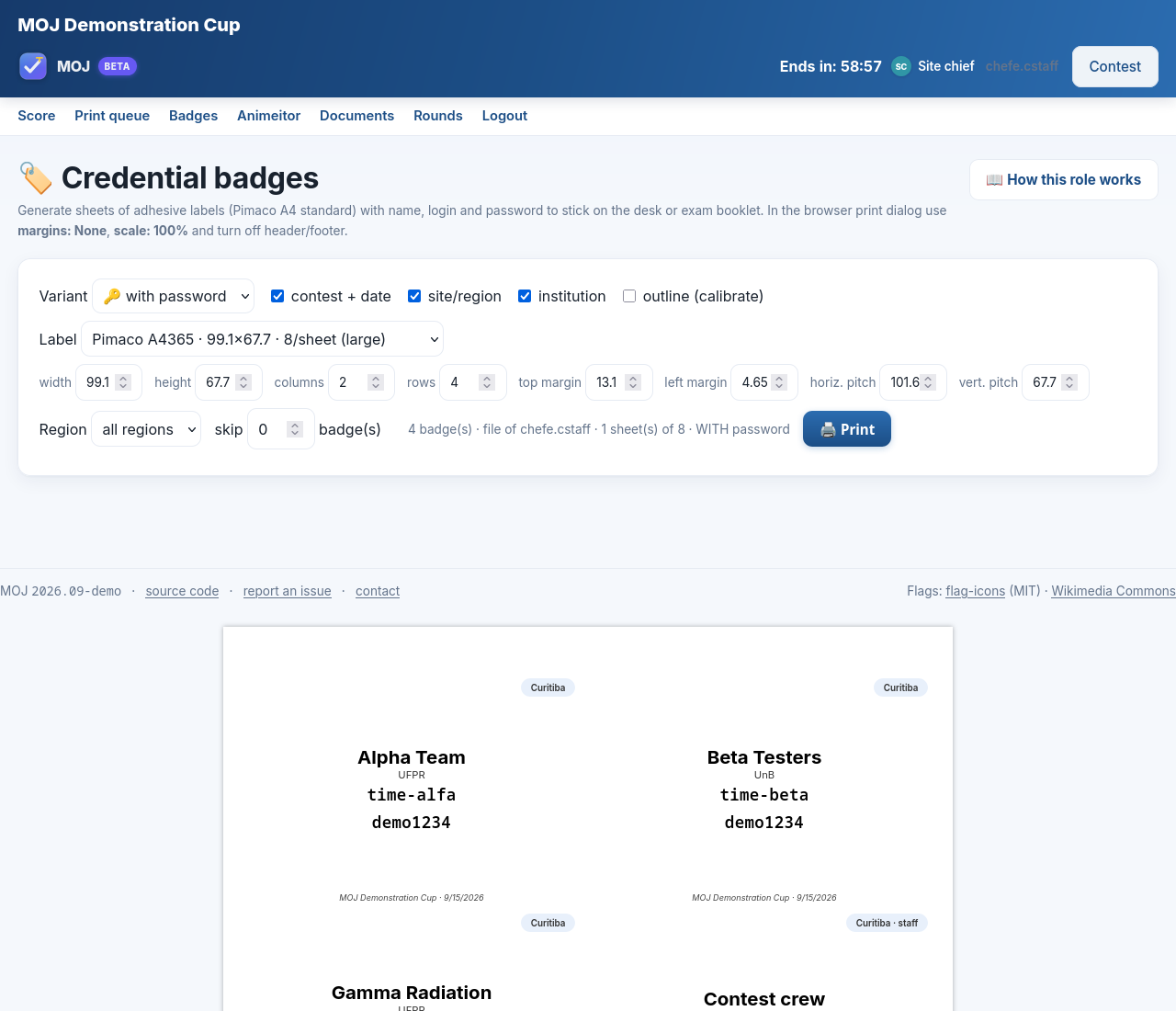
.cstaff: log in and open Badges. That screen lists the teams
of your site with their login and password, laid out for printing on labels. Pick one team
for the rehearsal and write its credential down.
The badges screen. Only the site chief opens it, and only with the teams of that
site.
If the list comes up empty, stop right here and call the organizers: your site scope is not
configured, and on contest day you would be left with no credentials.
Step 2 — the team logs in
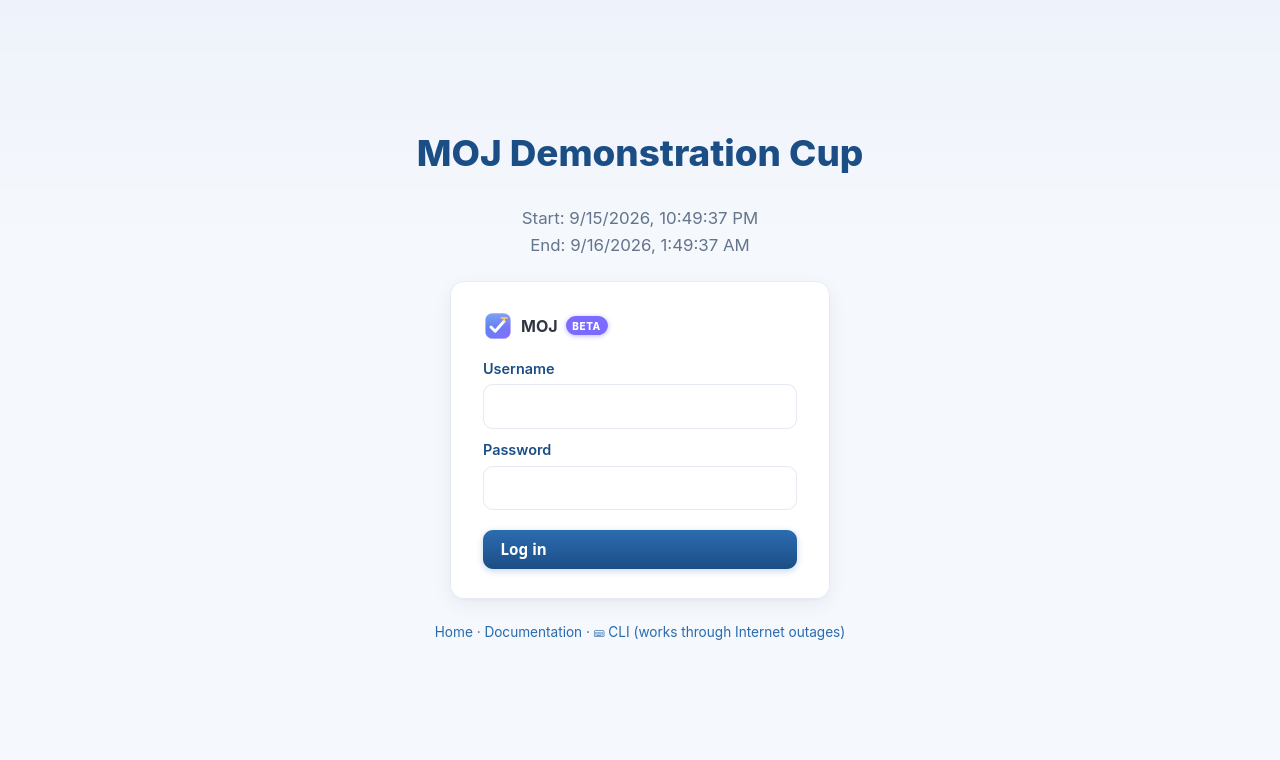
Team: on the machine running Maratona Linux, open the
rehearsal address and log in with the credential from step 1. Put a real person in that chair,
even if it is you: the rehearsal only works if the rehearsal machine is the contest machine.
The front door. Before the contest starts this screen shows only a countdown — the
form appears at the scheduled minute.
This contest has no editor in the browser, and that is deliberate: the Marathon works
the same way. The team writes the program in an editor on the machine, compiles it in the
terminal, and submits the finished file.
Step 3 — the team solves problem A
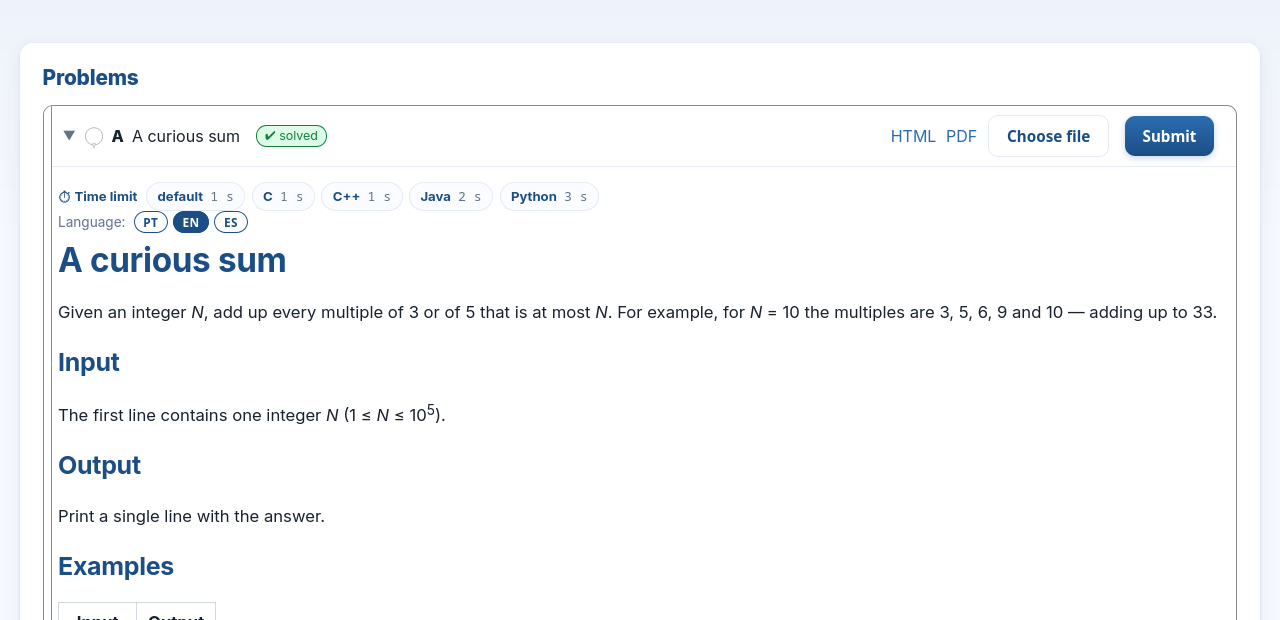
Problem A — Ola Mundo reads nothing and prints one line. Take the program from
Appendix A in whichever language you prefer, save it to a file and submit: click the
problem's row, pick the file and press Submit.
The accordion open with no editor: the statement takes the full width and the file
picker on the row is how you submit.
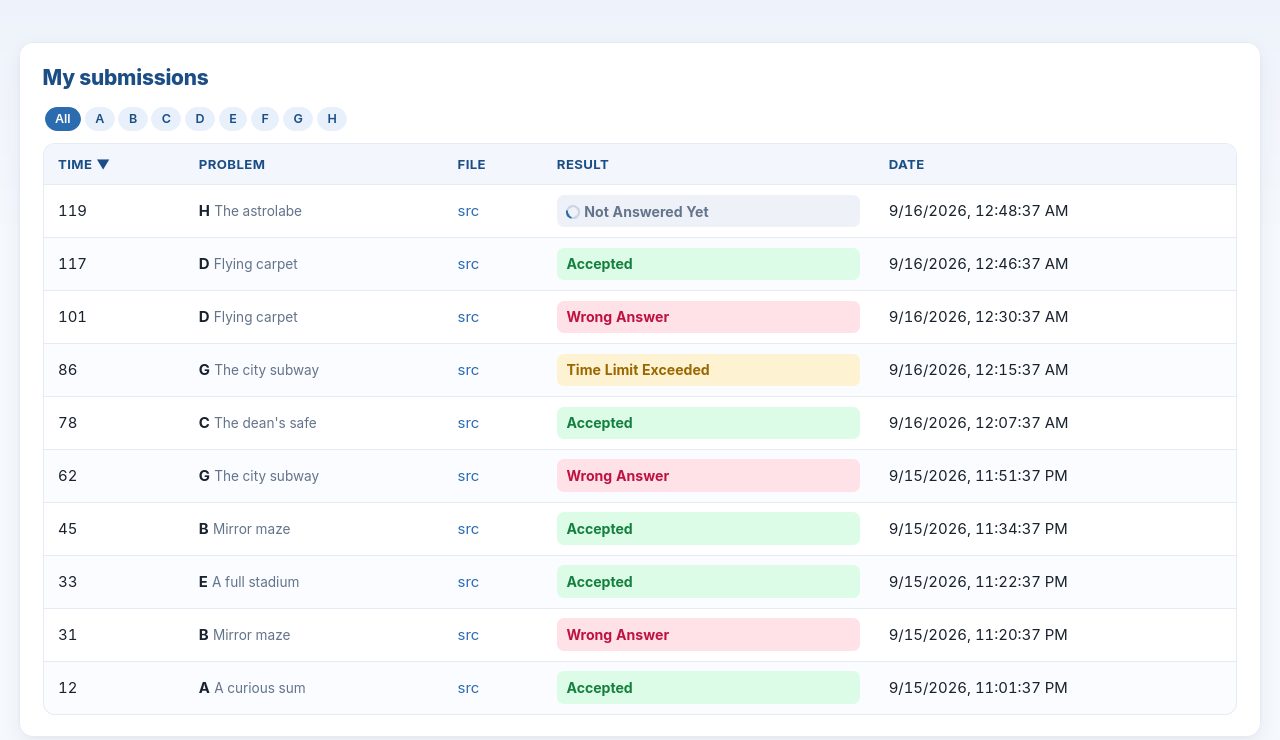
The verdict arrives on its own in a few seconds, with no need to reload. What you want to see
is Accepted, and the problem's row changes colour up above.
The team's submission list. Time is the minute of the contest; Date is
the wall clock.
Step 4 — getting it wrong on purpose
Now send three broken programs, one of each kind. The point is for the site to recognise each
verdict when it shows up on contest day, and to know that none of them means the system is
broken. The programs are in Appendix B.
Send
To problem
You will see
Which means
the wrong arithmetic
B — Soma 2
Wrong Answer
The program ran
to the end, and the answer is not the expected one.
the early exit
C — Soma N
Runtime Error
The program broke
while running.
the endless loop
D — EOF
Time Limit Exceeded
The program
took longer than the problem allows.
In a contest, the verdict is all the team gets: no failing test, no diff, no partial score. That
is on purpose — the test data is exam material.
Step 5 — the team asks for a printout
Team: open the Printing tab, pick the file you have just
submitted and press Request printing. The request shows up below as
pending.
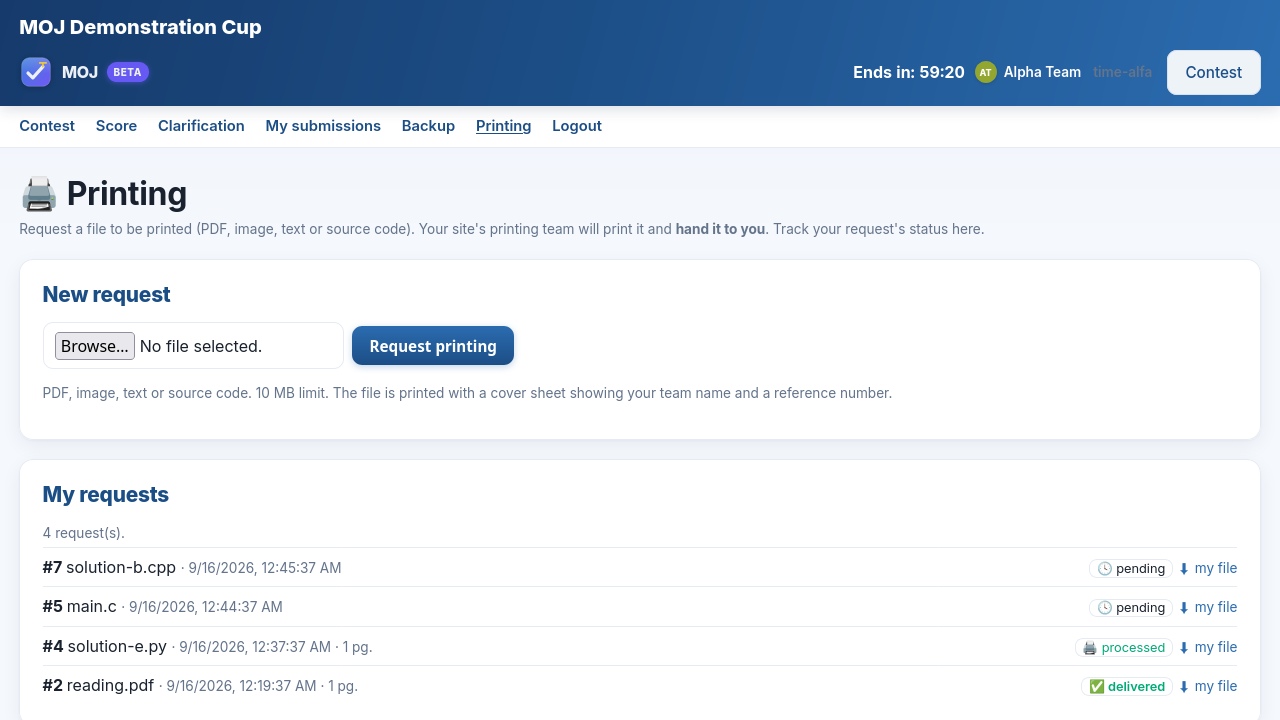
The team's screen: the form on top, their own requests below, each with its
state.
One detail worth learning now: the team only ever sees its own requests, and the number beside
each one is the number printed on the cover sheet. That is how you check, at the counter, that the
paper went to the right team.
Step 6 — the site prints
.staff: on the machine that has the printer — Windows, macOS
or any Linux, never Maratona Linux — open Print queue. The request from step 5 is there,
at the top.
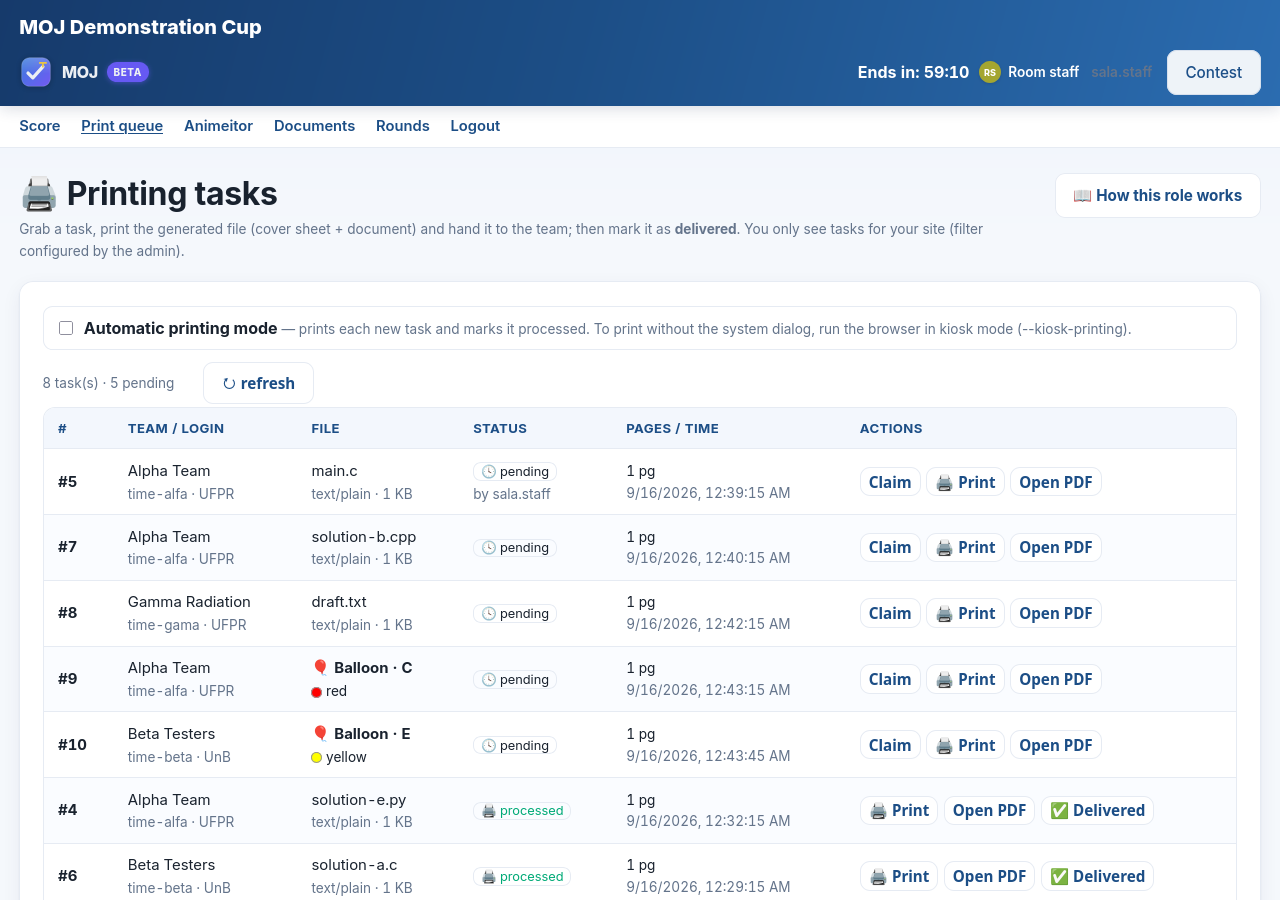
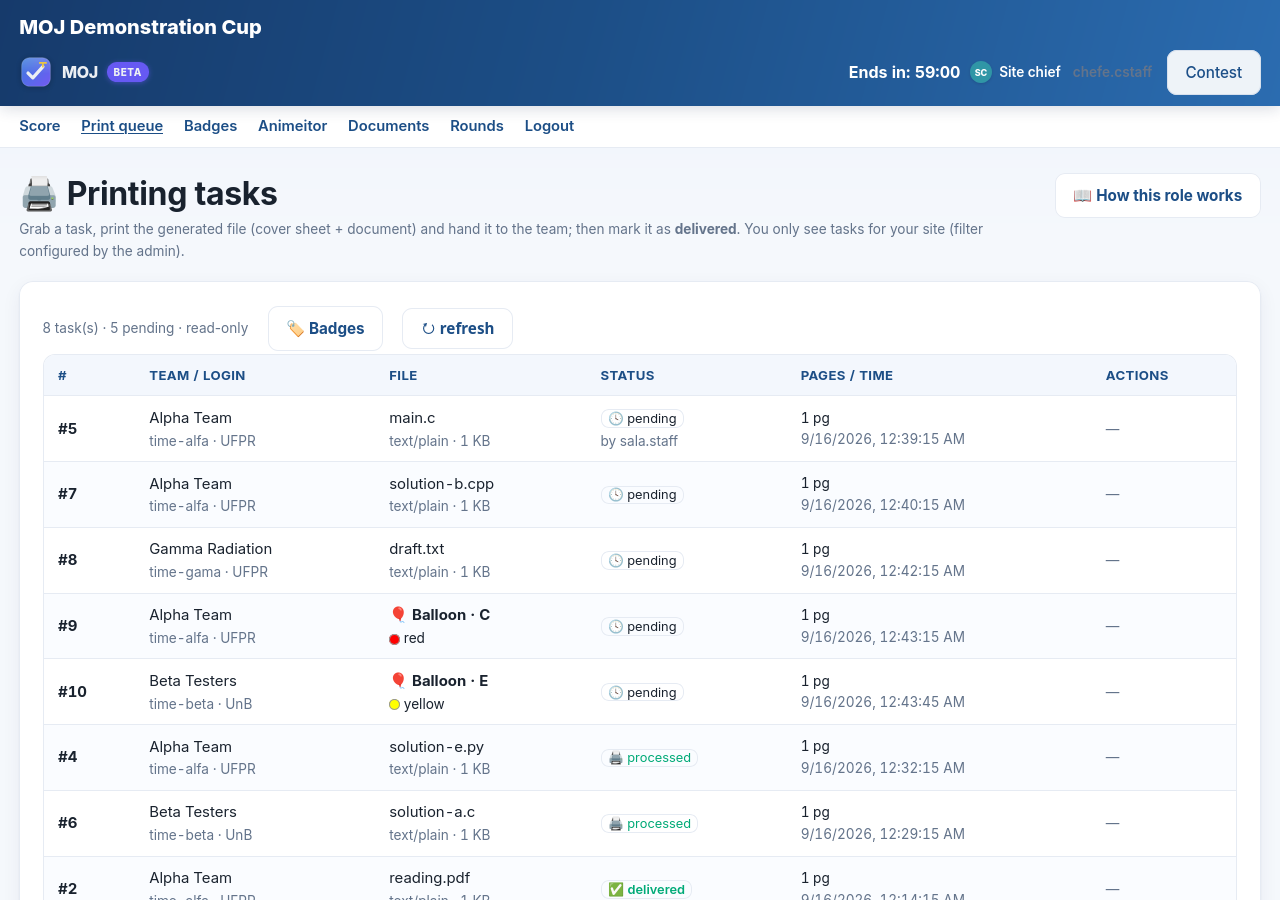
The site queue. Pending tasks on top; below them, the ones already printed and
waiting to be delivered. The two rows with 🎈 are balloons.
The cycle has three steps, always in the same order:
Claim — reserves the task for you, so two volunteers do not print the same
thing.
🖨️ Print — opens the PDF in a new tab and calls the printer. Allow pop-ups for
this site now: if the browser blocks the tab, the task is never marked as printed, and
the paper disappears from your list.
✅ Delivered — after you hand the paper over at the team's desk. That click is what
tells the organizers the paper arrived.
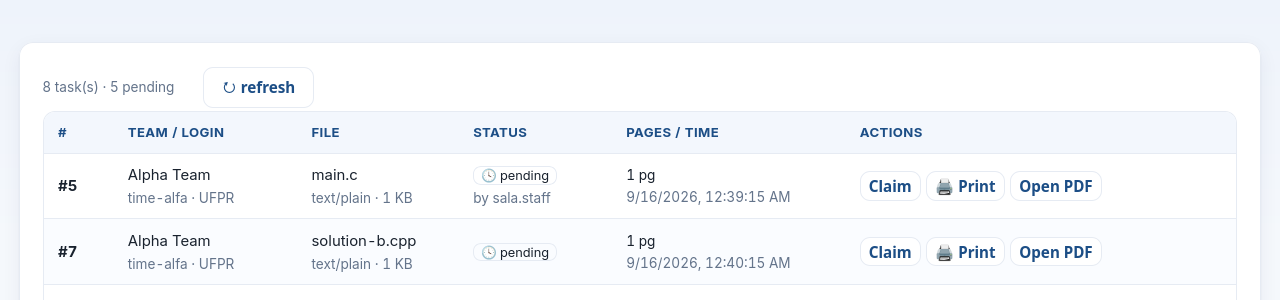
The queue rows, up close. Notice by sala.staff under the state: that is who
reserved it.
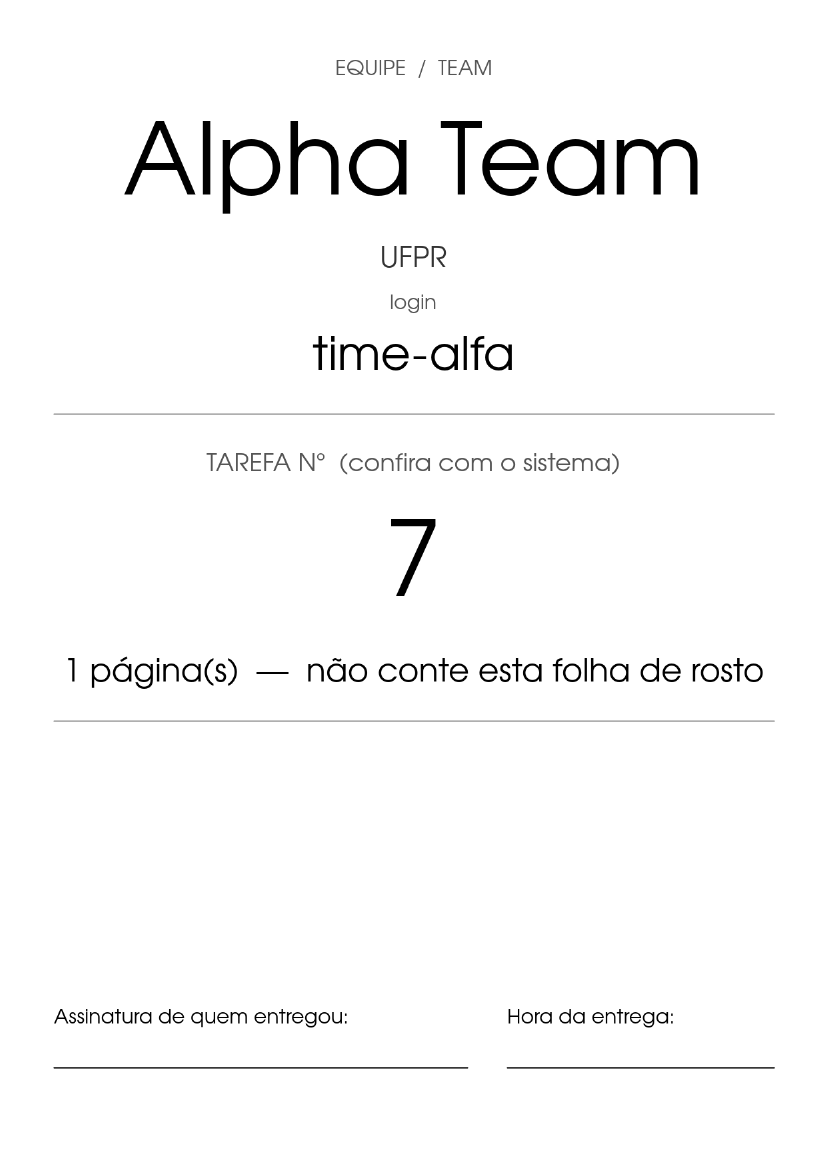
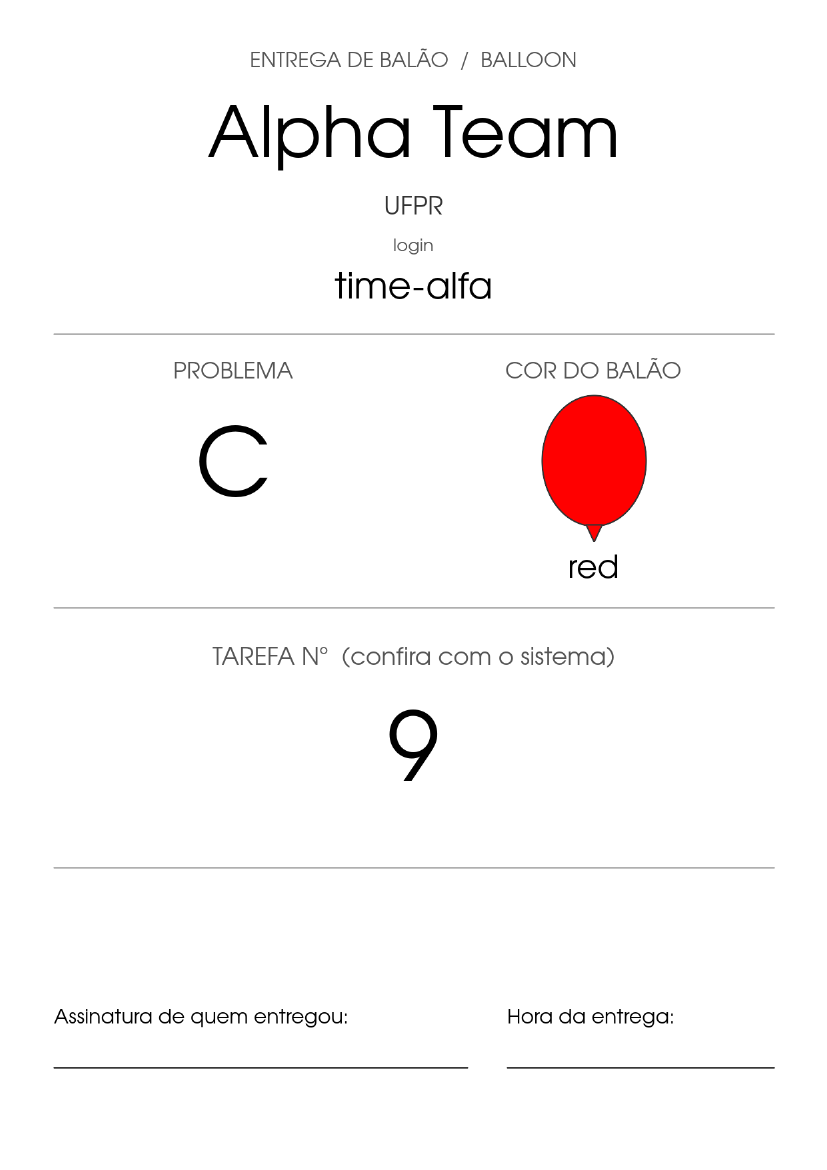
What comes out of the printer is a cover sheet followed by the team's document. The cover
carries the team name, the university, the login and the task number, with a line to sign on
delivery.
The cover sheet. The big number is the same one the team sees on screen.
After it comes the code, in a monospaced font, with the team's own indentation and numbered
lines. Look at the top and the bottom of each page: the date and the file name run along the top,
and the team login, the file name again and the task number run along the bottom. That is what
saves the day when a sheet comes loose from the pile — and with thirty printouts on the desk, one
always does.
The text on that sheet comes out in Portuguese at every site, and that is on purpose: the
delivery desk recognises the same piece of paper across the whole continent. The balloon colour is
named in two languages, so that it matches the physical balloon.
Step 7 — the balloon
Remember the Accepted from step 3? It became a balloon task, and it lands in the same
queue, marked with 🎈 and carrying the problem's colour. And notice when it appears: the balloon is only
created when somebody from the site opens the queue. If nobody opens
it, it does not exist — that is not the system running late.
The balloon sheet: a single page with the problem letter, the colour drawn, and its
name spelled out.
Treat a balloon like any other task: Claim, Print, and Delivered once the
balloon reaches the desk. Carry the sheet along with the balloon — that sheet is the proof of
delivery.
Each colour belongs to a letter, and the same letter has the same colour at every site. Check
your balloons against the sheet before the contest starts.
Step 8 — printing without touching anything
In a busy contest, stopping at every print dialog is what slows the room down. That is what
automatic mode is for: the checkbox at the top of the queue. With it on, every new task is
claimed, printed and marked on its own. All that is left for you is the walk to the desk.
For the paper to come out with no dialog at all, the browser has to be in kiosk printing
mode. Close Chrome and open it again like this:
Linux
  google-chrome --kiosk-printing https://mdp-teste-2026.moj.naquadah.com.br/contest/staff/

Windows  (Start menu → right-click Chrome → Properties → Target)
  "C:\Program Files\Google\Chrome\Application\chrome.exe" --kiosk-printing

macOS
  open -a "Google Chrome" --args --kiosk-printing
With Chrome in that mode, turn the checkbox on, ask for another printout from the team's window
and do not touch anything. The paper comes out by itself. That is how the room runs on the
day.
Test this today. Kiosk mode uses whichever printer the system has as default, and it asks
nothing else. If the default is the wrong one, you find out now — and not with thirty teams in the
queue.
Step 9 — the site chief checks
.cstaff: open the same queue. You see everything your team sees, with
one difference: the actions column is empty. That is not a permission mistake, it is how the role
is drawn — claiming and printing belong to the room staff.
The same queue through the chief's eyes: there to watch, not to operate.
While you are there, confirm the two things only you can see. First: the queue shows the teams of
your site and nobody else. Second: the badges from step 1 match the people who will sit in the
room.
Site checklist
Tick each line only after you have watched it happen:
Item
☐
The team logged in from a machine running Maratona Linux.
☐
The .staff account is on a machine that prints — and it is not Maratona Linux.
☐
My site's badges open, and the list has my teams in it.
☐
A team logged in with the credential from the badge.
☐
A submission came back Accepted.
☐
I saw the three failures: Wrong Answer, Runtime Error and Time Limit Exceeded.
☐
A print request came out of the printer, with its cover sheet.
☐
Pop-ups for this site are allowed in the site's browser.
☐
Automatic mode printed on its own, with Chrome in kiosk.
☐
The balloon task showed up and its colour matches the balloons we have here.
☐
I marked a task as Delivered.
☐
The system's default printer is the room printer.
When something goes wrong
What you see
What it is
I pressed Print and nothing happened
The browser blocked the pop-up. Allow
pop-ups for this site and press again — the task is still there, still unmarked.
The queue is empty
Either nobody asked for anything, or your site scope matches no
team at all. Ask the site chief to open the badges: if those are empty too, it is the
scope.
403 when claiming or printing
You are on the .cstaff
account. Claiming and printing belong to .staff.
The team cannot work on the machine
Check that it really is a Maratona Linux machine. A missing editor, a compiler that is not there, a different path — those are machine problems, not judge problems, and finding them today is what the rehearsal is for.
The site cannot find the printer
The .staff account is on the wrong machine. It has to run where the room printer is installed — Windows, macOS or any Linux. Maratona Linux is the team's machine, not the counter's.
The credential will not log in
Check upper and lower case, and that the badge
belongs to your site. If it still fails, that one is for the organizers — write the login down and
tell them.
The verdict is taking long
While it says Not Answered Yet, the submission is
in the judge's queue. In a busy contest that takes seconds, not minutes.
Paper came out with no cover sheet
Somebody used Open PDF, which opens
without printing or marking. The button in the flow is Print.
A program that crashed came back as Time Limit Exceeded
It happens. The time
limit on these problems is tiny, and dumping the memory of a process that blew up already goes
past it. The clock runs out before the judge looks at why it died.
Appendix A — programs that pass
One per problem, in whichever language your site prefers. Save them under the name shown: in
Java the file name must be the name of the public class.
// Main.java
public class Main {
    public static void main(String[] args) { System.out.println("Ola Mundo"); }
}
B — Soma 2 · reads two numbers and adds them
/* sol.c */
#include <stdio.h>
int main(void) {
    long a, b;
    scanf("%ld %ld", &a, &b);
    printf("%ld\n", a + b);
    return 0;
}
# sol.py
import sys
a, b = map(int, sys.stdin.read().split())
print(a + b)
C — Soma N · reads N and then N numbers
/* sol.c */
#include <stdio.h>
int main(void) {
    long n, x, sum = 0;
    scanf("%ld", &n);
    for (long i = 0; i < n; i++) { scanf("%ld", &x); sum += x; }
    printf("%ld\n", sum);
    return 0;
}
The program runs to the end, prints a number, and the number is wrong.
/* wa.c — multiplies instead of adding */
#include <stdio.h>
int main(void) {
    long a, b;
    scanf("%ld %ld", &a, &b);
    printf("%ld\n", a * b);
    return 0;
}
# wa.py
import sys
a, b = map(int, sys.stdin.read().split())
print(a * b)
Runtime Error — send it to problem C
The program never reaches the end: it stops halfway and announces failure. That is what really
happens when an array overflows, a divisor turns out to be zero, or an exception goes
uncaught.
/* rte.c */
#include <stdio.h>
#include <stdlib.h>
int main(void) {
    long n;
    scanf("%ld", &n);
    exit(1);            /* leaving with anything other than zero means "it went wrong" */
}
# rte.py
import sys
n = int(sys.stdin.readline())
sys.exit(1)
Time Limit Exceeded — send it to problem D
The program never finishes. The judge cuts it off and returns the verdict.
/* tle.c */
int main(void) { while (1) { } return 0; }